

Lifestyle
Privacy apps for Android: what they can do, and what a VPN cannot
Choose Android privacy tools by the problem they solve, not by a vague promise of total privacy.
Illustration created for VPNVertex
Illustration, not a VPNVertex hands-on test.
There is no single privacy app that fixes every risk. The useful approach is to match each tool to a job, then check permissions, updates and the provider's data practices.
There is no single privacy app that fixes every risk. The useful approach is to match each tool to a job, then check permissions, updates and the provider's data practices. A good Android privacy setup usually combines a privacy-conscious browser, a secure messenger, a password manager, multi-factor authentication and, when appropriate, a VPN.
Start with the job, not the app list
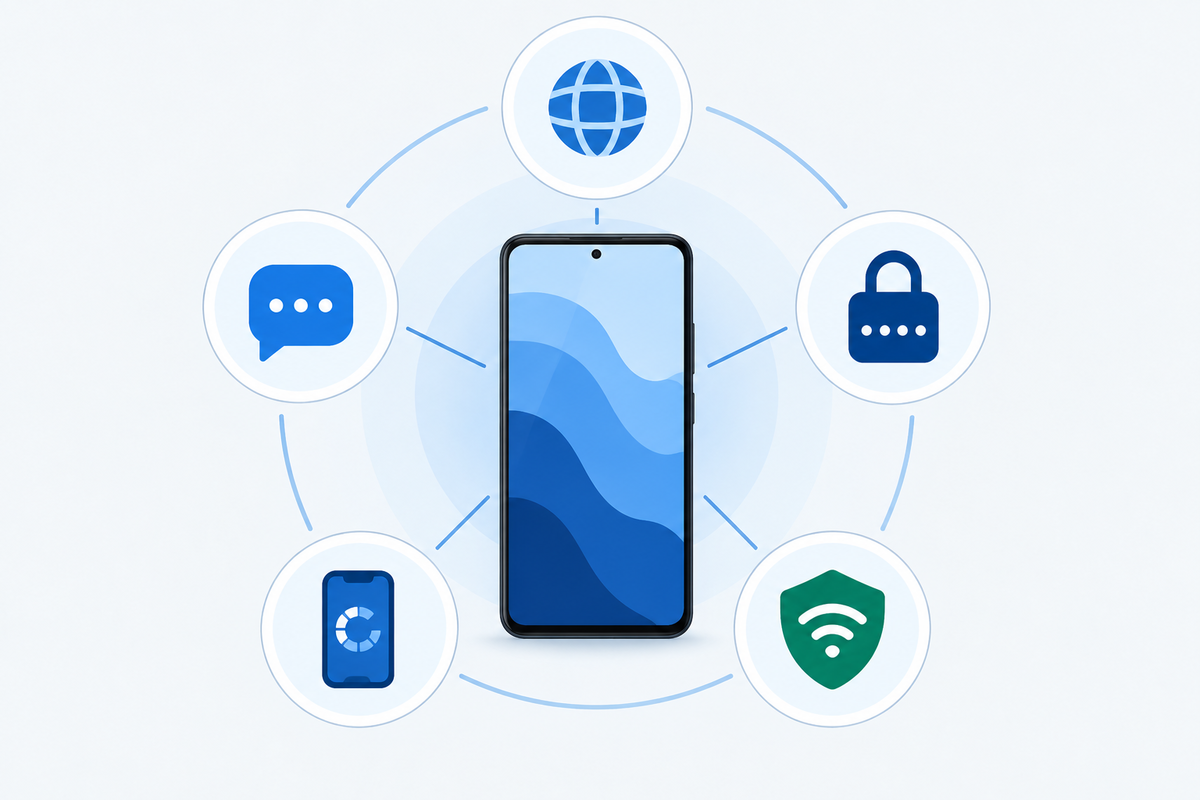
Search results for "privacy app for Android" mix very different products. Some apps protect messages, some reduce tracker loading, some hide content on the device, and some create a VPN connection. They should not be judged by the same promise.
For browsing privacy
Look for a browser or browser configuration that explains how it handles trackers, cookies, fingerprinting and private sessions. "Private" usually describes a set of protections, not invisibility. When you sign in, the service can still associate activity with your account.
For messages
A privacy-focused messenger is designed to protect conversations and their metadata according to its own architecture. That is different from a VPN. A VPN can protect traffic on the way to a service, but it cannot change the security properties of a conversation after the service receives it.
Original editorial image created for VPNVertex.
For passwords and logins
A password manager helps you create and store unique credentials. Add MFA to important accounts, especially email, cloud storage and financial services. Those controls address account takeover more directly than a VPN does.
For tracker visibility
Tools such as Exodus Privacy can help people investigate trackers and permissions associated with Android apps. Treat a report as useful evidence, not an absolute safety grade. An app can have a reasonable permission profile and still be poorly maintained, or a legitimate app can need access for a feature you use.
For network protection
An Android VPN uses the platform's VPN framework and asks the user to approve the connection. Android's official VPN documentation describes that system-level flow. Before approving any VPN, check who operates it, what data it retains, how the account is secured and whether the app is maintained.
Permissions are part of the decision
Android's permission guidance explains that apps should request access when it is needed and that users can make permission decisions. Use that model when reviewing privacy tools:
- Read the developer name and privacy policy before installing.
- Check the permissions against the app's stated job.
- Prefer official stores or a clearly documented distribution channel.
- Review the app's update history and remove tools you no longer use.
- Be cautious when an app asks for broad access unrelated to its purpose.
What a VPN can and cannot do
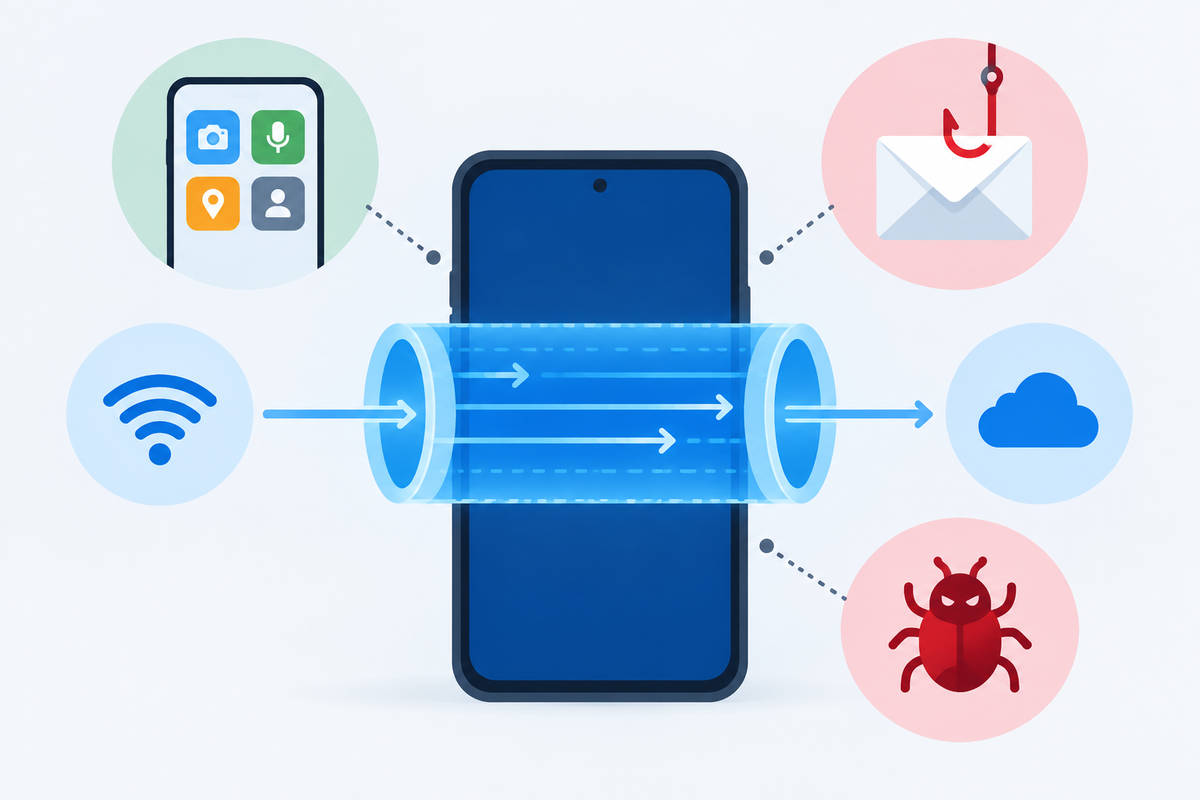
A VPN can help keep the local network from reading the protected traffic directly, which is valuable on hotel, airport or cafe Wi-Fi. It also changes which network sees the first visible connection. It does not make a malicious download safe, prevent an app from collecting information after the connection reaches it, or stop you from entering a password into a fake login page.
The VPN service itself becomes part of the trust model. Read its retention and sharing statements, use MFA on the account when offered, and enable a kill switch or always-on option if the app and your use case support it. Those features are not universal, so do not assume a plan includes them without checking.
A simple Android privacy stack
- Keep Android and your apps updated.
- Use a screen lock and a password manager with unique credentials.
- Turn on MFA for important accounts.
- Review app permissions and remove unused apps.
- Use a privacy-oriented browser or messenger that matches your needs.
- Add a VPN for untrusted networks, after reviewing the provider's privacy model.
Original editorial image created for VPNVertex.
How to verify an Android privacy app
Before installing, compare the app's stated purpose with the permissions it requests. On Google Play, read the Data safety section and then open the developer's privacy policy; Google notes that the section is based on developer disclosures and can differ from the technical permissions list. Check the update history, publisher identity and account-recovery options. Remove tools you cannot explain or maintain.
People who travel or work from changing networks may also want our guides for digital nomads, gamers, journalists and expats. Those pages should be read as use-case comparisons, not as a replacement for checking current app features.
What we did not test
VPNVertex did not perform a device-by-device Android test, reverse-engineer an app, or certify any provider's current claims. This is a source-led framework for comparing categories and checking disclosures, not a product ranking.
FAQ
Final takeaway
Choose Android privacy tools by the permission or risk they address, then verify the developer, disclosure and operating-system support. For a device-level comparison, use our iPhone privacy checklist.
Sources
- Android Developers: VPN
- Android Developers: Request app permissions
- Google Play: Data safety section
- Exodus Privacy