

Lifestyle
How to protect your computer on public Wi-Fi

On a laptop, network profile and local sharing controls matter as much as the VPN connection.
Illustration created for VPNVertex
Illustration, not a VPNVertex hands-on test.
The most useful laptop checklist is simple: verify the hotspot, use the public network profile, keep the firewall and updates on, disable sharing, and protect the connection when the network is not yours.
The most useful laptop checklist is simple: verify the hotspot, use the public network profile, keep the firewall and updates on, disable sharing, and protect the connection when the network is not yours. A VPN can protect the computer-to-VPN leg, but it does not replace endpoint security or careful browsing.
Set up the computer before joining
Verify the hotspot
Confirm the network name and sign-in procedure with staff. CISA warns that attackers can create similarly named hotspots. A strong signal or a familiar-looking name is not proof that a network is legitimate.
Choose a public network profile
When the operating system asks whether the network is trusted, choose the public or untrusted option unless you are on a network you administer. The label and exact controls differ between Windows, macOS and Linux, but the goal is the same: keep the computer from advertising itself to nearby devices.
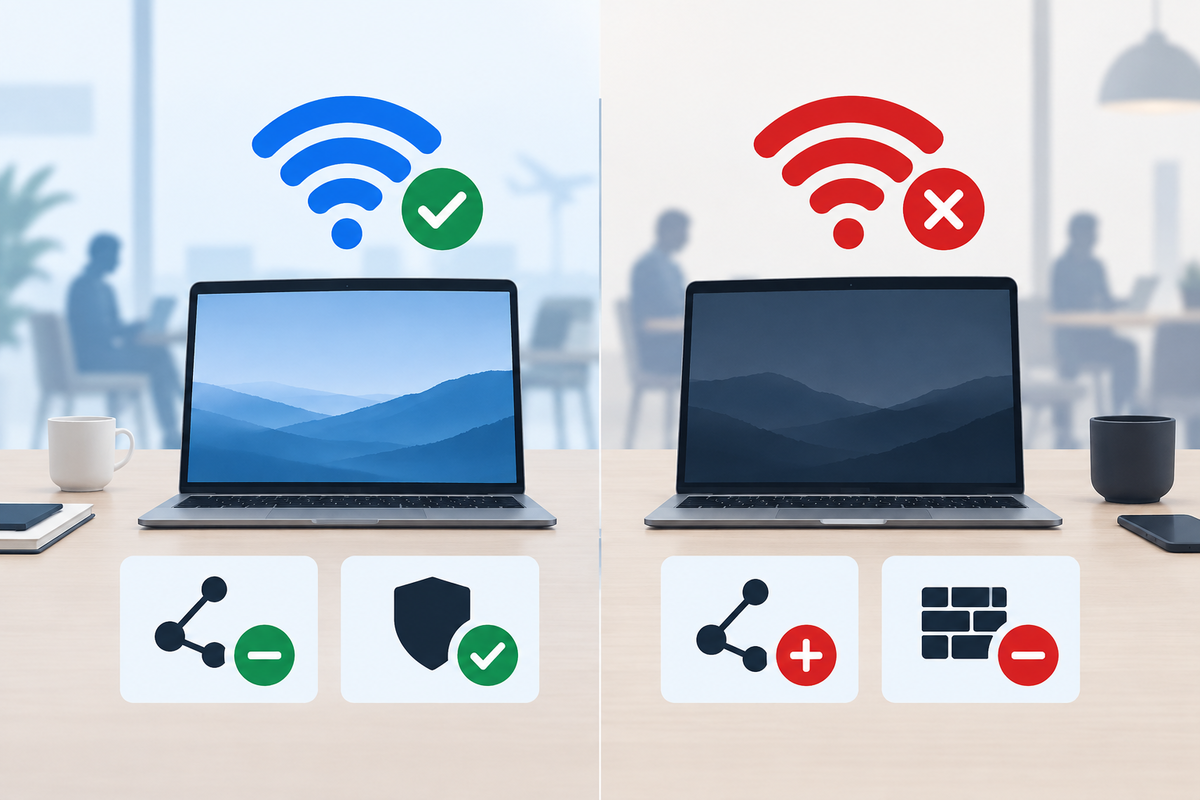
Original editorial image created for VPNVertex.
Keep the firewall and sharing controls on
Do not turn off the firewall to solve a connection problem. Disable file sharing, printer sharing, remote discovery and other local services you do not need. If your work computer is managed by an employer, follow its instructions rather than changing security controls blindly.
Update and use a standard account
Install operating-system, browser and security updates before traveling. Use a standard user account for everyday work where practical, and protect the administrator account separately. These steps reduce the damage a malicious download can do; they do not make a questionable download safe.
Work safely during the session
Use secure sites and avoid unnecessary exposure
The FTC public Wi-Fi guide recommends using secure sites and limiting personal information entered on a hotspot. Type an important address yourself or use a known bookmark. Do not trust a pop-up that asks you to install a browser extension, certificate or "network helper" to continue.
Add a VPN when it fits the risk
A VPN can encrypt traffic between the computer and the VPN service and reduce the visibility of that traffic to the local hotspot. Check the provider's privacy terms, supported protocols, app behavior and kill-switch options first. The VPN service is another party that can handle connection information, so convenience alone is not enough.
A VPN cannot patch the computer, detect every malicious file, prevent phishing or secure a stolen account. Think of it as a network control that works alongside the firewall, updates, account MFA and safe browsing habits, not as complete protection on its own.
Disconnect cleanly
- Sign out of sensitive services and close browser sessions.
- Disconnect from the hotspot rather than leaving the laptop connected while you walk away.
- Forget the network if you will not return to it.
- Check the computer for unexpected downloads or security prompts.
- Review important account alerts if the session involved work, email or finance.
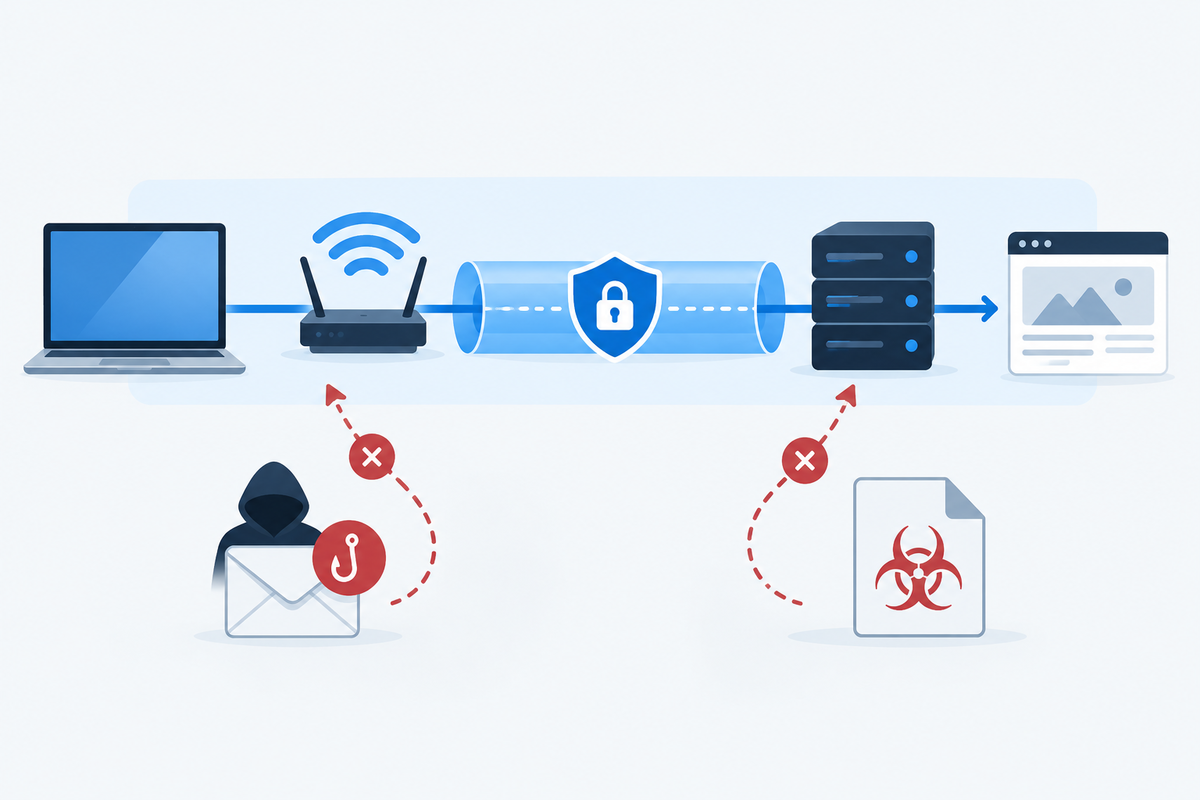
Original editorial image created for VPNVertex.
How to verify the desktop checklist
Before joining, confirm the network profile is public, the firewall is enabled and sharing is off. During the session, use a known bookmark, keep the browser current and stop when a pop-up requests software or credentials. After leaving, disconnect, forget the network if appropriate and inspect recent downloads. If this is a work computer, compare the result with your organization's policy instead of overriding managed controls.
What we did not test
VPNVertex did not run a hands-on test on Windows, macOS or Linux hardware and did not audit a live public hotspot. Operating-system labels vary, so the article describes the security objective rather than claiming a universal menu path.
Which readers need the strictest version?
Small-business owners, journalists and digital nomads often move between hotel, cafe and coworking networks. Our guides to small-business VPN use, journalists, dedicated IP for business and digital nomads cover broader use cases. They should complement this device checklist, not replace the computer's own controls.
FAQ
Final takeaway
Protect a computer on public Wi-Fi with an updated system, a correctly classified network, encrypted services and a plan for sensitive work. Apply the same preparation to mobile devices with our phone public Wi-Fi checklist.
Sources
- CISA: Best Practices for Using Public Wi-Fi, checked September 16, 2026
- FTC: Public Wi-Fi Networks - Security Tips, checked September 16, 2026
- National Cybersecurity Alliance: Public Computers and Public Wi-Fi, checked September 16, 2026
- Vanderbilt: Risks of Public Wi-Fi, checked September 16, 2026