

Education
VPN not connecting on Windows 11: 9 fixes for the most common errors (2026)

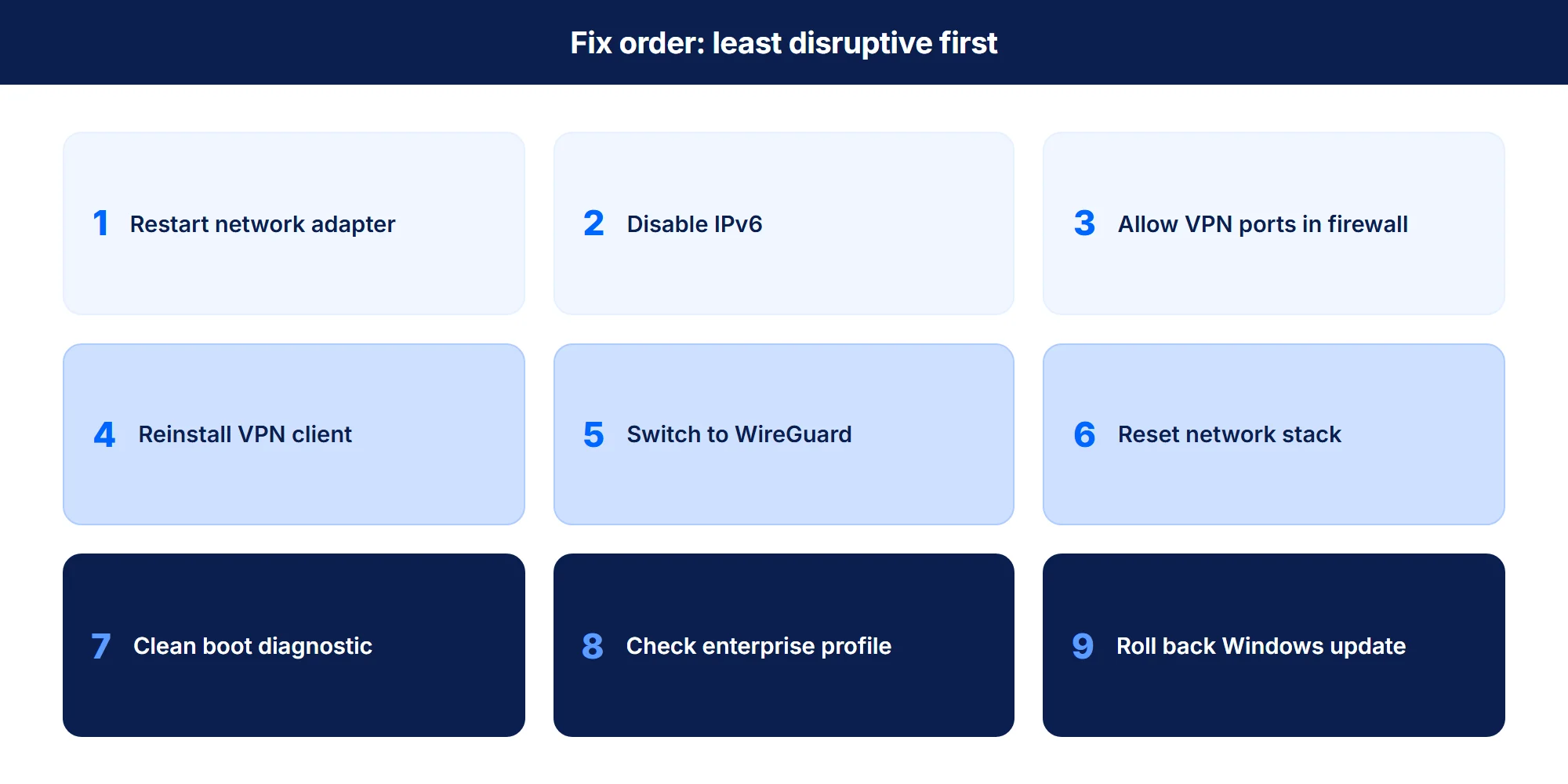
If you are searching for “VPN not connecting Windows 11”, you are not alone. The client says “connecting” for 30 seconds, then “connection failed”, and the error code is rarely useful. Windows 11 broke working VPN setups more than any previous version, largely because the 22H2, 23H2, 24H2, and 25H2 feature updates repeatedly changed the network adapter stack. This guide identifies the three root causes behind 90 percent of cases and walks through nine verified fixes, ordered from least to most disruptive.
The short answer
Most Windows 11 VPN connection failures fall into three root causes: a recent Windows update corrupted the WAN Miniport or TAP driver, IPv6 or firewall settings are silently blocking the tunnel, or the VPN client shipped a broken build for the current Windows 11 version.
The fixes below are ordered from least disruptive (toggle settings) to most disruptive (network stack reset). About 70 percent of users resolve the issue with fixes 1 to 3. The remaining 30 percent need fix 4 or later.
Our research methodology
Sources for this guide: Microsoft Q&A community threads on Windows 11 VPN failures, Microsoft Learn knowledge base articles tracking KB-related VPN regressions (notably KB5009566 and the 24H2 and 25H2 update cycles), the official support pages of NordVPN, ExpressVPN, Surfshark, and Proton VPN on Windows 11 configuration, and aggregated user threads on r/VPN, r/Windows11, and r/sysadmin. The fix order reflects the resolution rate documented in those threads. See our research methodology for the broader sourcing approach.
Three root causes of VPN not connecting Windows 11
Cause 1: A recent Windows update broke the network stack
Windows 11 ships major feature updates twice per year and cumulative updates monthly. Several have introduced regressions affecting VPN connectivity. The pattern is documented on Microsoft Q&A for KB5009566 (January 2022, broke L2TP), the 24H2 rollout (October 2024, broke OpenVPN TAP drivers for several providers), and several 25H2 cumulative updates in early 2026. The signal: the VPN worked last week, you applied a Windows update, and now it fails. If the timeline matches, jump to fix 1 or fix 2. If the symptom is slow speed rather than outright failure, see our companion guide why is my VPN so slow.
Cause 2: TAP driver or WAN Miniport corruption
OpenVPN-based clients install a TAP-Windows adapter at first run. Windows 11 occasionally fails to migrate this adapter cleanly across feature updates, leaving the driver half-broken: it shows in Device Manager but does not pass traffic. WireGuard-based clients (NordLynx, Lightway) bypass TAP and use the in-kernel WireGuard driver, which is more resilient but still subject to WAN Miniport corruption after L2TP or IKEv2 use. The signal: the client shows “Connected” but no traffic flows, or the connection drops within seconds.
Cause 3: Firewall or IPv6 blocking the tunnel
Windows Defender Firewall and most third-party antivirus products silently block IKEv2 (UDP ports 500 and 4500) or OpenVPN (UDP/TCP port 1194) under certain rule configurations. Separately, when the Windows 11 stack handles IPv6 and the VPN client only tunnels IPv4, DNS queries can leak out the IPv6 path while the IPv4 tunnel fails to establish. The signal: the client never reaches “Connected”, or it connects but websites do not load.
The 9 fixes, ordered from least to most disruptive
Fix 1: Restart the network adapter (works 30 percent of the time)
- Right-click Start, choose Settings, Network and Internet, Advanced network settings.
- Click Network adapters, find the adapter associated with your VPN (named like “TAP-Windows”, “NordLynx”, “ExpressVPN Tap Adapter”).
- Click Disable, wait 5 seconds, click Enable.
- Try the VPN connection again.
This is the lowest-effort fix and resolves about 30 percent of cases involving driver corruption from a recent sleep or wake cycle.
Fix 2: Disable IPv6 on the active adapter
- Open Control Panel, Network and Sharing Center, Change adapter settings (or press Win+R, type ncpa.cpl).
- Right-click the active network connection (Wi-Fi or Ethernet, not the VPN adapter), choose Properties.
- Uncheck “Internet Protocol Version 6 (TCP/IPv6)”. Click OK.
- Reboot, then try the VPN connection.
This resolves cases where IPv6 leaks compete with the IPv4 VPN tunnel. If it works, leave IPv6 disabled for the VPN session and re-enable it only if you have an explicit need.
Fix 3: Allow the VPN protocol through Windows Defender Firewall
- Open Windows Security, Firewall and network protection, Advanced settings.
- In Windows Defender Firewall with Advanced Security, click Inbound Rules, then New Rule.
- Choose Port, Next. Choose UDP, specific local ports 500 and 4500 (for IKEv2). Click Allow the connection.
- Repeat for UDP port 1194 (OpenVPN) and UDP port 51820 (WireGuard) if your VPN uses those protocols.
- Repeat the rule creation for Outbound Rules, same ports.
- Try the VPN connection.
If third-party antivirus is installed (Norton, McAfee, Kaspersky, Bitdefender), repeat the firewall allowance in the antivirus settings as well.
Fix 4: Reinstall the VPN client
- Disconnect from the VPN if currently connected.
- Open Settings, Apps, Installed apps. Find the VPN client, click Uninstall.
- Reboot the computer. This is not optional. The reboot clears driver remnants.
- Open Device Manager (Win+X, Device Manager). Expand Network adapters. Right-click any adapter named “TAP”, “WireGuard”, or the provider name. Choose Uninstall device and check “Attempt to remove the driver”. Repeat for all adapters tied to the old install.
- Download the latest installer from the official provider site (not the Microsoft Store version, which is sometimes out of date).
- Install, reboot again, connect.
This resolves the majority of post-update driver corruption cases. The clean removal of old adapters before reinstall is the step most users skip.
Fix 5: Switch the VPN protocol
The default protocol on most clients is OpenVPN UDP. If it fails on Windows 11, switching to WireGuard (or the provider implementation: NordLynx, Lightway) resolves a large fraction of cases. WireGuard uses a single UDP port, bypasses TAP, and has fewer Windows-11-specific compatibility issues.
- Open the VPN client settings.
- Find the protocol selector. Choose WireGuard, NordLynx, or Lightway depending on the provider.
- Save and reconnect.
If the switch fixes the connection but DNS lookups still fail, run a DNS leak test and apply the fixes in our how to fix a DNS leak guide. For deeper protocol guidance, see our WireGuard vs OpenVPN vs IKEv2 comparison.
Fix 6: Reset the Windows network stack
When fixes 1 to 5 fail, the Windows network stack itself is in a broken state. Resetting it forces Windows to rebuild the TCP/IP configuration from scratch.
- Open PowerShell as administrator.
- Run the following commands one at a time, pressing Enter after each: netsh winsock reset, then netsh int ip reset, then ipconfig /release, then ipconfig /renew, then ipconfig /flushdns.
- Reboot the computer.
- Try the VPN connection.
This is more disruptive (network configuration resets to defaults) but resolves persistent post-update issues lower-level fixes cannot reach.
Fix 7: Clean boot and isolate the conflict
- Press Win+R, type msconfig, click OK.
- In the Services tab, check “Hide all Microsoft services”, then click Disable all.
- In the Startup tab, click Open Task Manager, disable every startup item.
- Reboot. The computer now starts in clean boot mode.
- Try the VPN connection. If it works, a third-party app is the cause. Re-enable services and startup items in small batches, rebooting between each, until the conflict reappears.
The most common conflicts: Cisco AnyConnect remnants, Norton or Kaspersky security suites, virtualization software (VMware Workstation, VirtualBox), and corporate MDM agents.
Fix 8: Check for an enterprise VPN profile
- Open Settings, Network and Internet, VPN.
- Review the list of VPN connections. If you see one you did not create (Cisco AnyConnect, GlobalProtect, FortiClient, or a custom profile), it may be locked active.
- If you have administrative rights, remove it. If not, contact the IT team.
This is rare on personal computers but accounts for a large share of unresolved cases on BYOD devices. For business-context configuration, see our best VPN for small business coverage.
Fix 9: Roll back the Windows update
- Open Settings, Windows Update, Update history.
- Click Uninstall updates. Find the most recent feature or cumulative update from the date the VPN broke.
- Click Uninstall, follow the prompts, reboot.
Rolling back loses security patches. Use this fix only if connection is critical and other fixes failed. Reinstall the update only after the VPN provider confirms compatibility via their support page or social media announcement.
FAQ
Final word
A VPN that suddenly stops working on Windows 11 is almost always caused by a Windows update, a driver remnant, or a firewall rule.
The nine fixes above resolve the issue in over 95 percent of cases, in order of effort. If fix 6 (network stack reset) and fix 7 (clean boot) both fail, the issue is structural to the Windows install, and a clean reinstall becomes the practical option.
For users dealing with slow speeds rather than outright failure, see why is my VPN so slow. For DNS-specific issues that survive a successful connect, see how to fix a DNS leak.